Mark the area
Brush, rectangle, circle or polygon: mark the car, the empty forecourt or the facade surface. To remove, the marking is enough; to add or change, add a description.
The rendering is almost right: a car is in the way, the forecourt is empty, one facade surface should be different. With Vizera you edit renderings after the fact: remove, add or change the area you mark, and the rest of the image stays as it is – no new render, in minutes. How marking works is explained on the Masking page.
6,500+ registered users in CH, DE and AT.Over 100,000 visualizations in the first year.


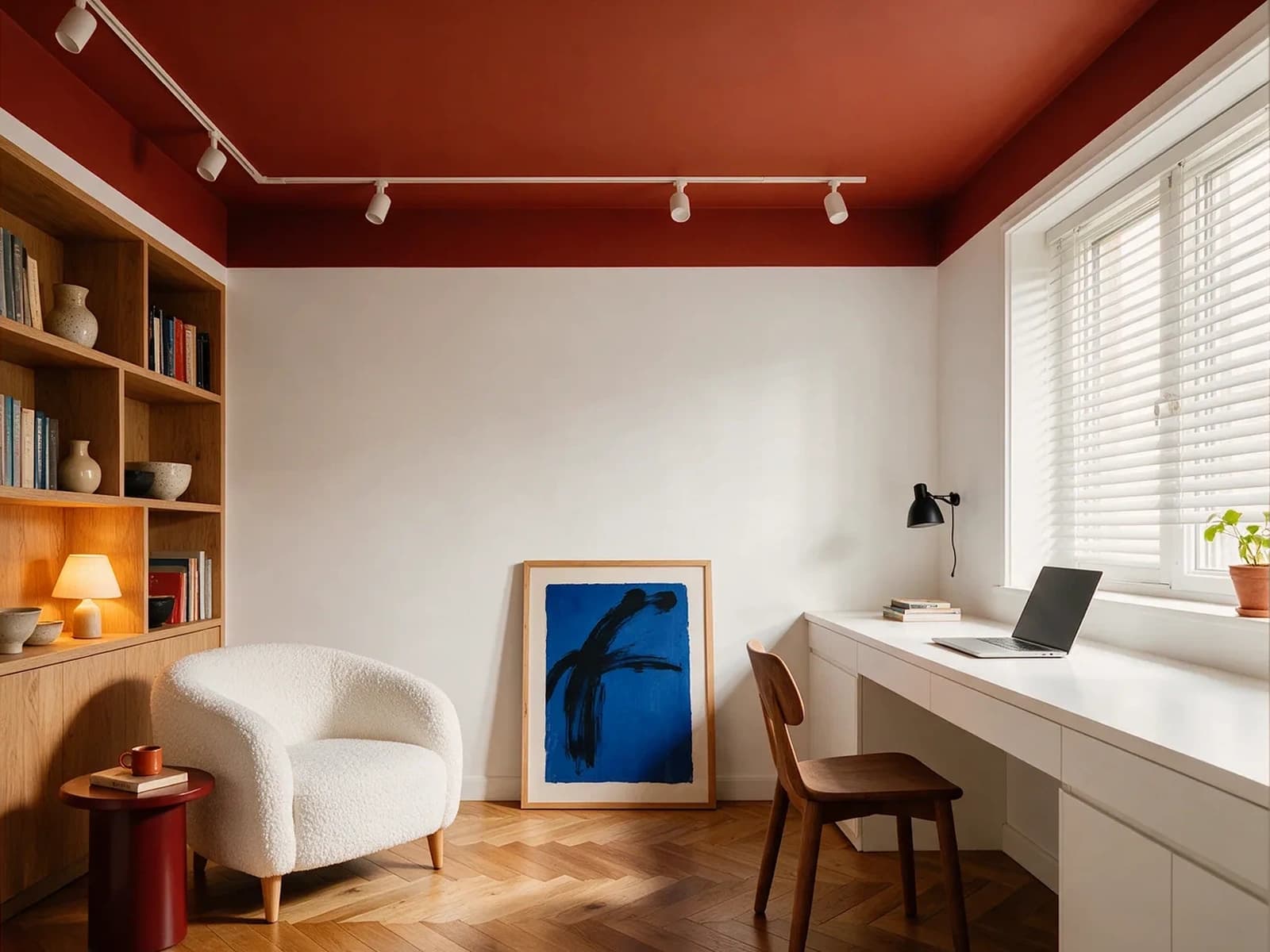
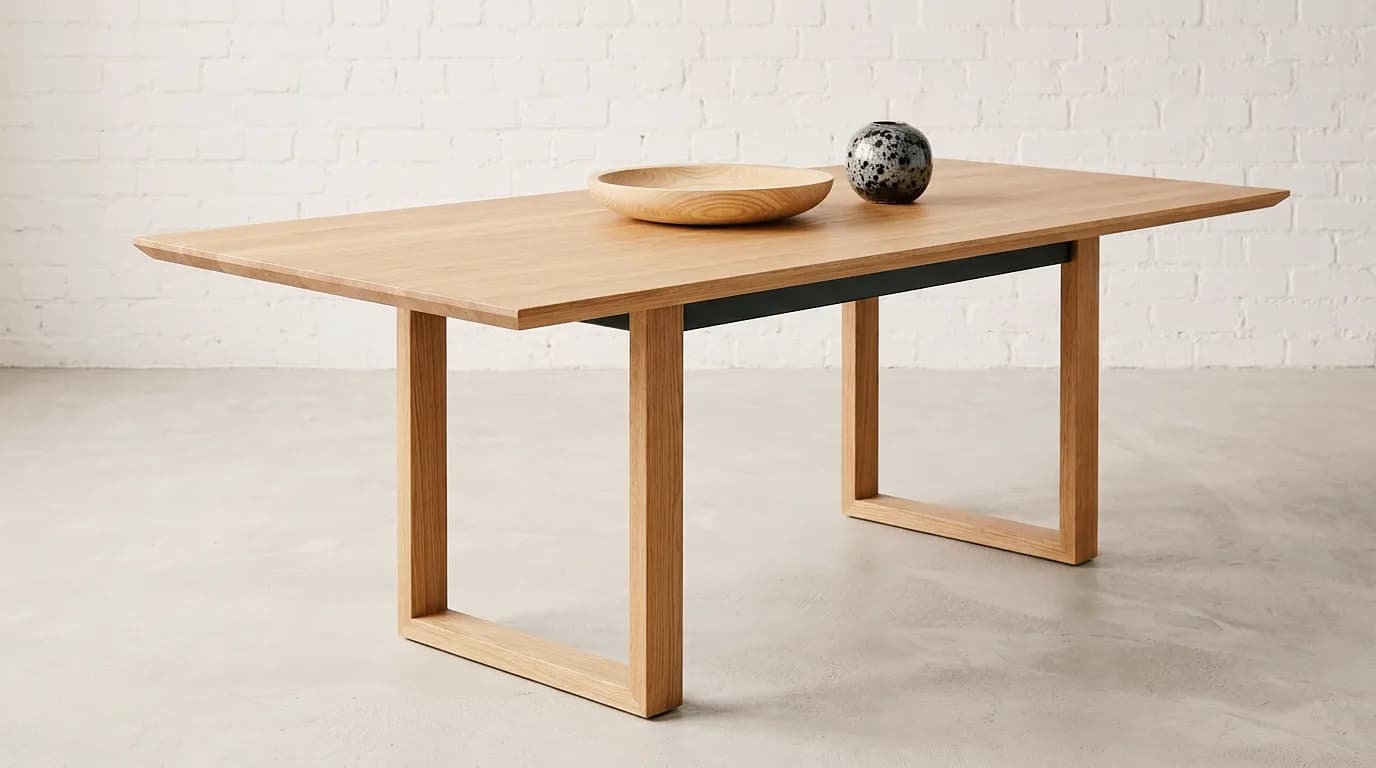
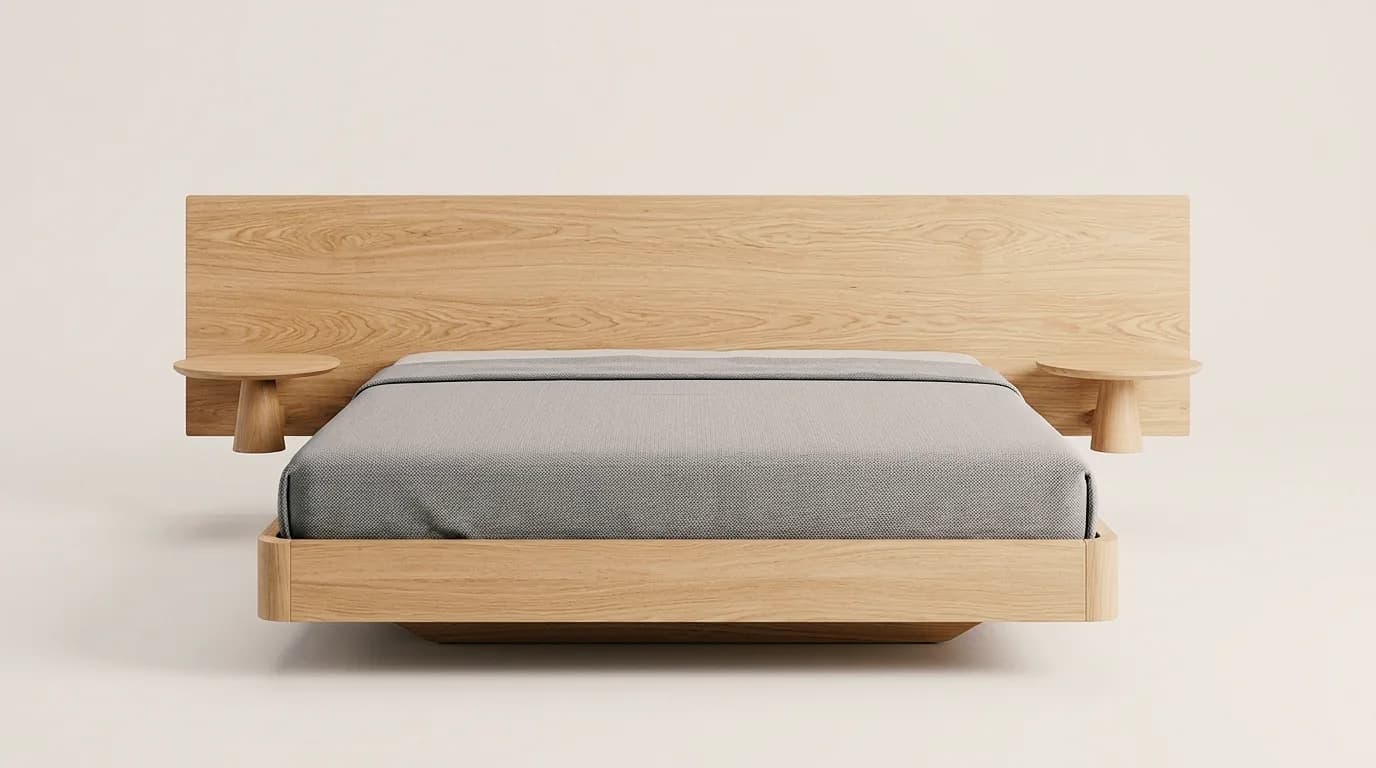
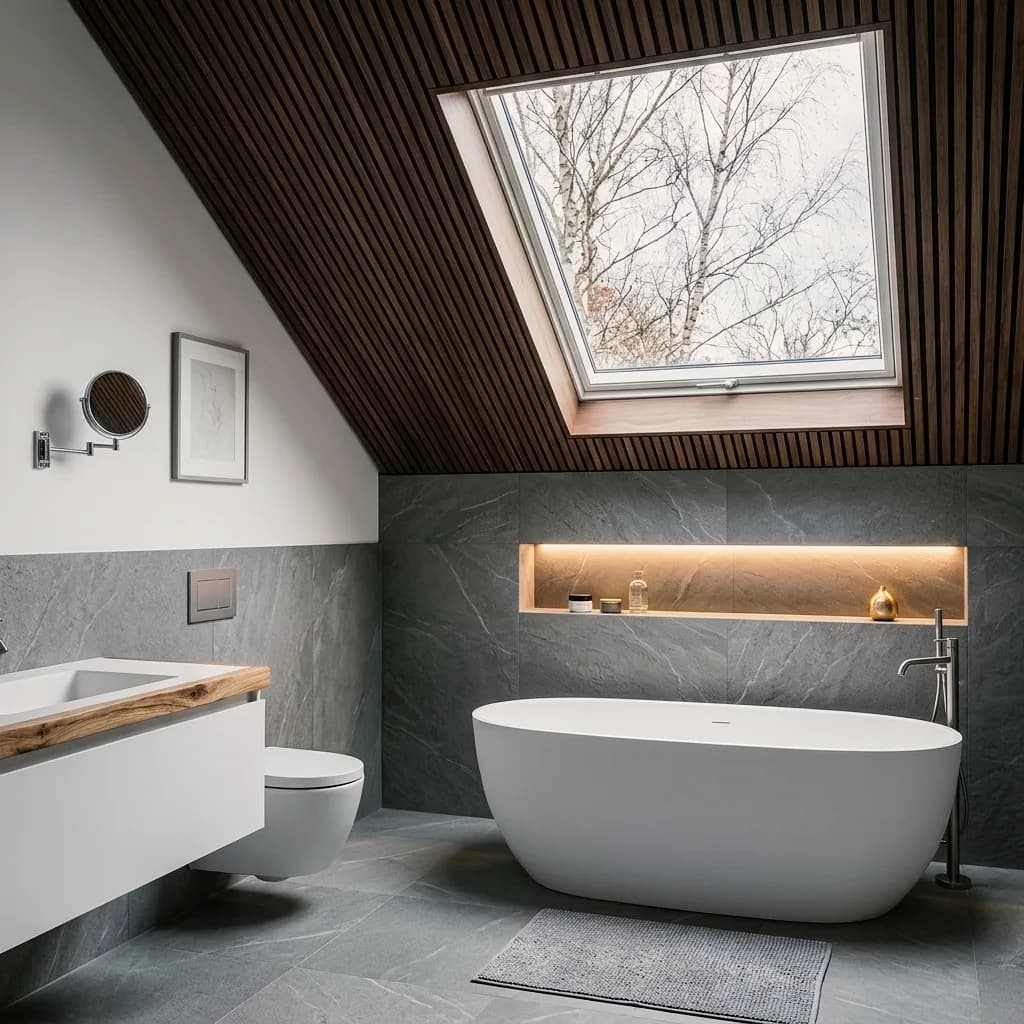
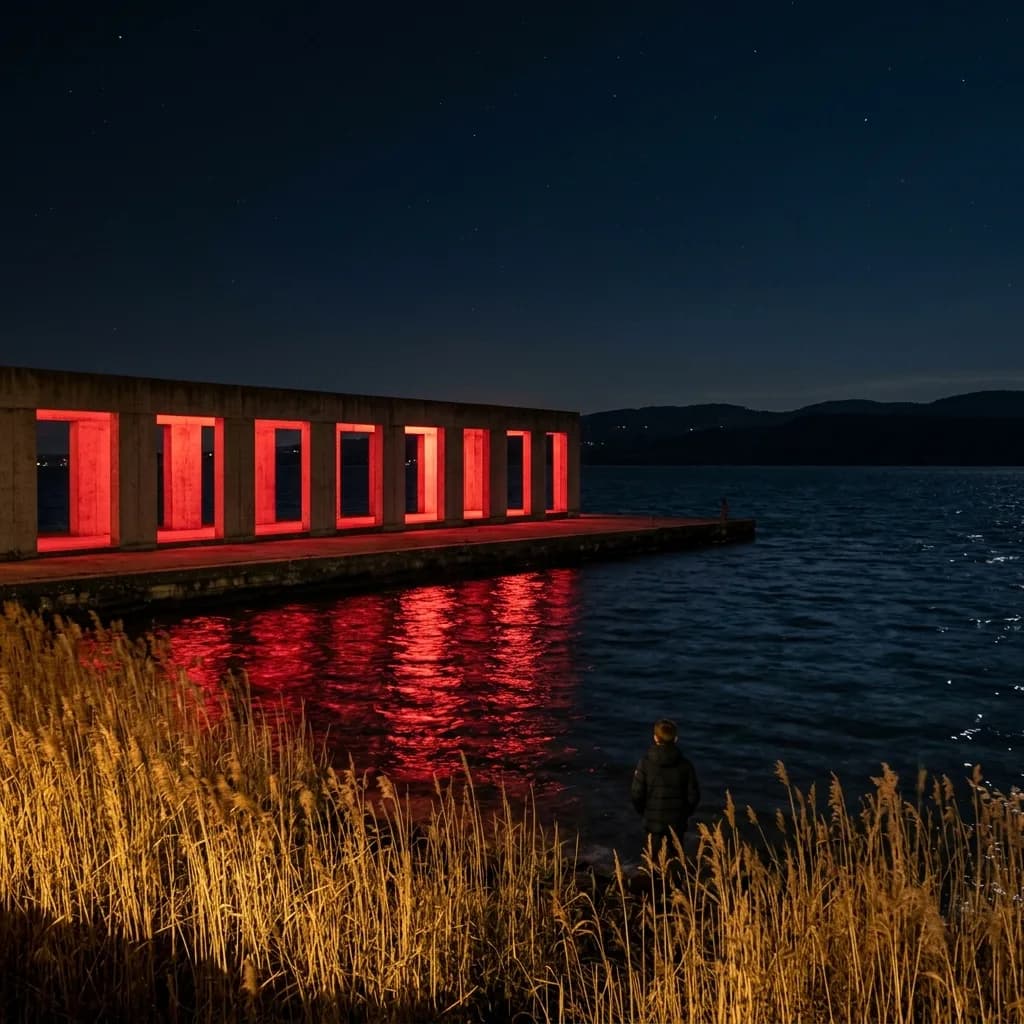
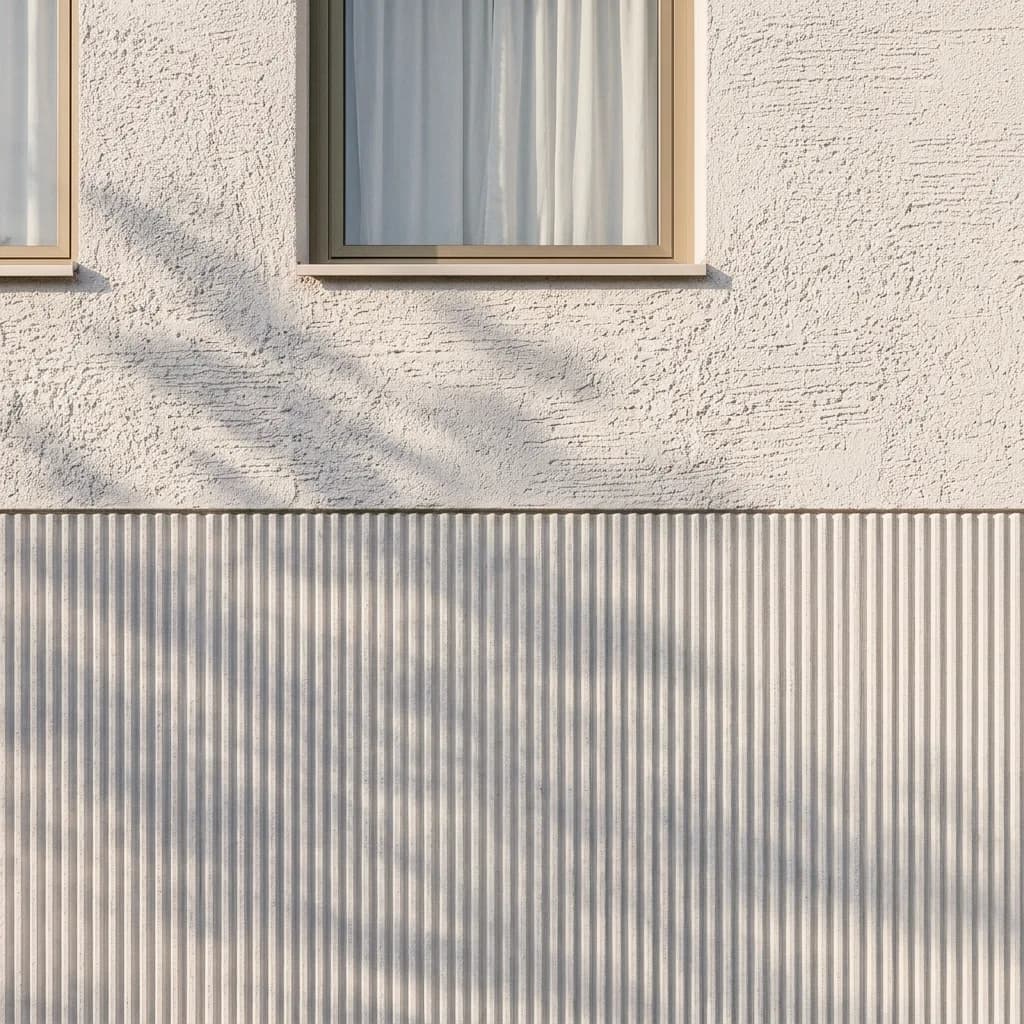
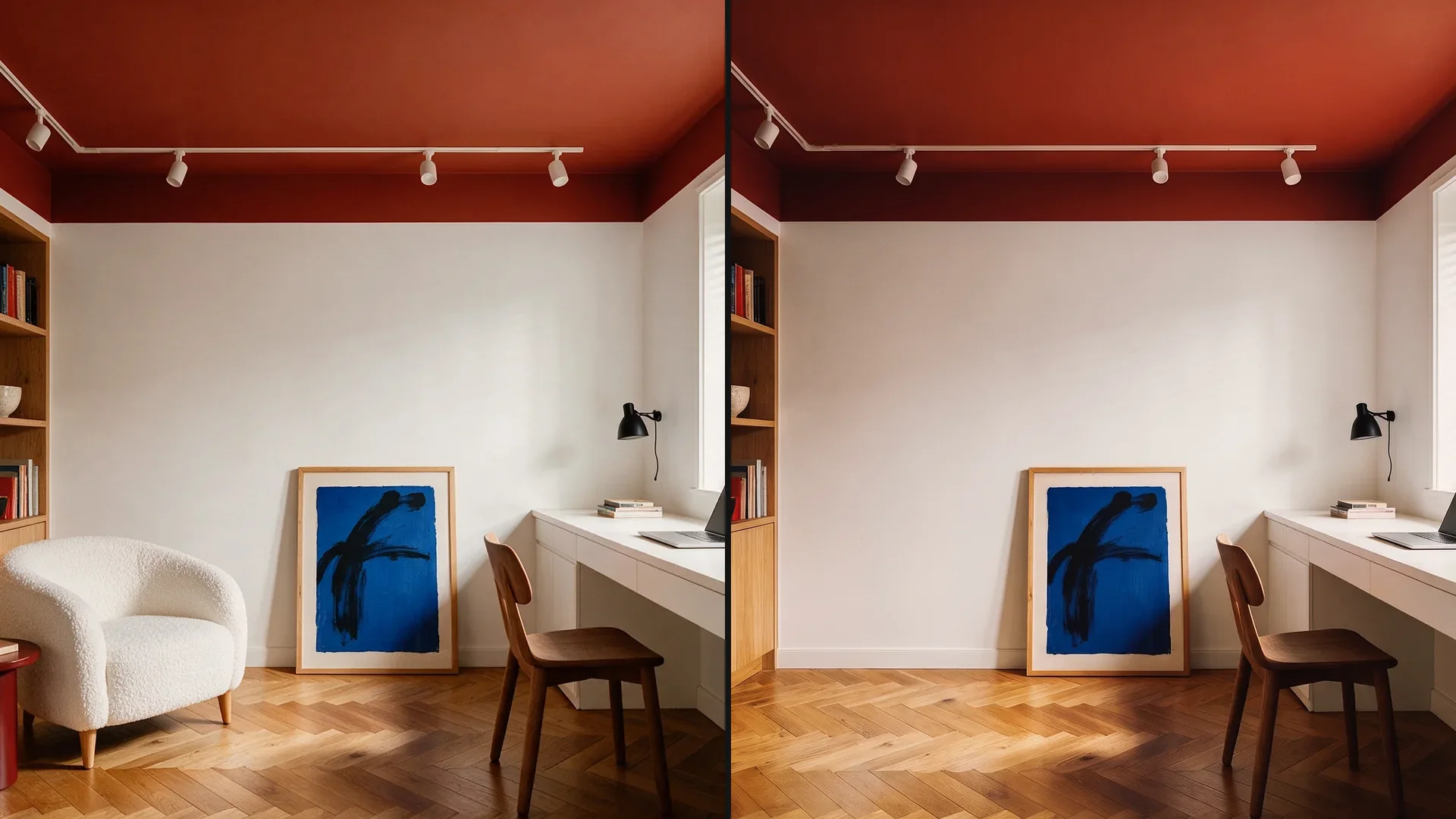
An element removed, surroundings added, light changed, material swapped in one area – the rest of the image stays. Click an example to see the versions.
01
The blue picture on the wall is marked and removed – wall, floor and light close up, while the armchair, desk and shelf stay where they are.
02
The oak table in an empty room and with chairs, floor and walls added – the furniture stays, the room is added.
03
The floating bed cut out and with a sage-green bedroom added – new wall, floor and light, the furniture unchanged.
04
The attic bathroom by day and at blue hour – tub, floor and window stay, the light changes.
05
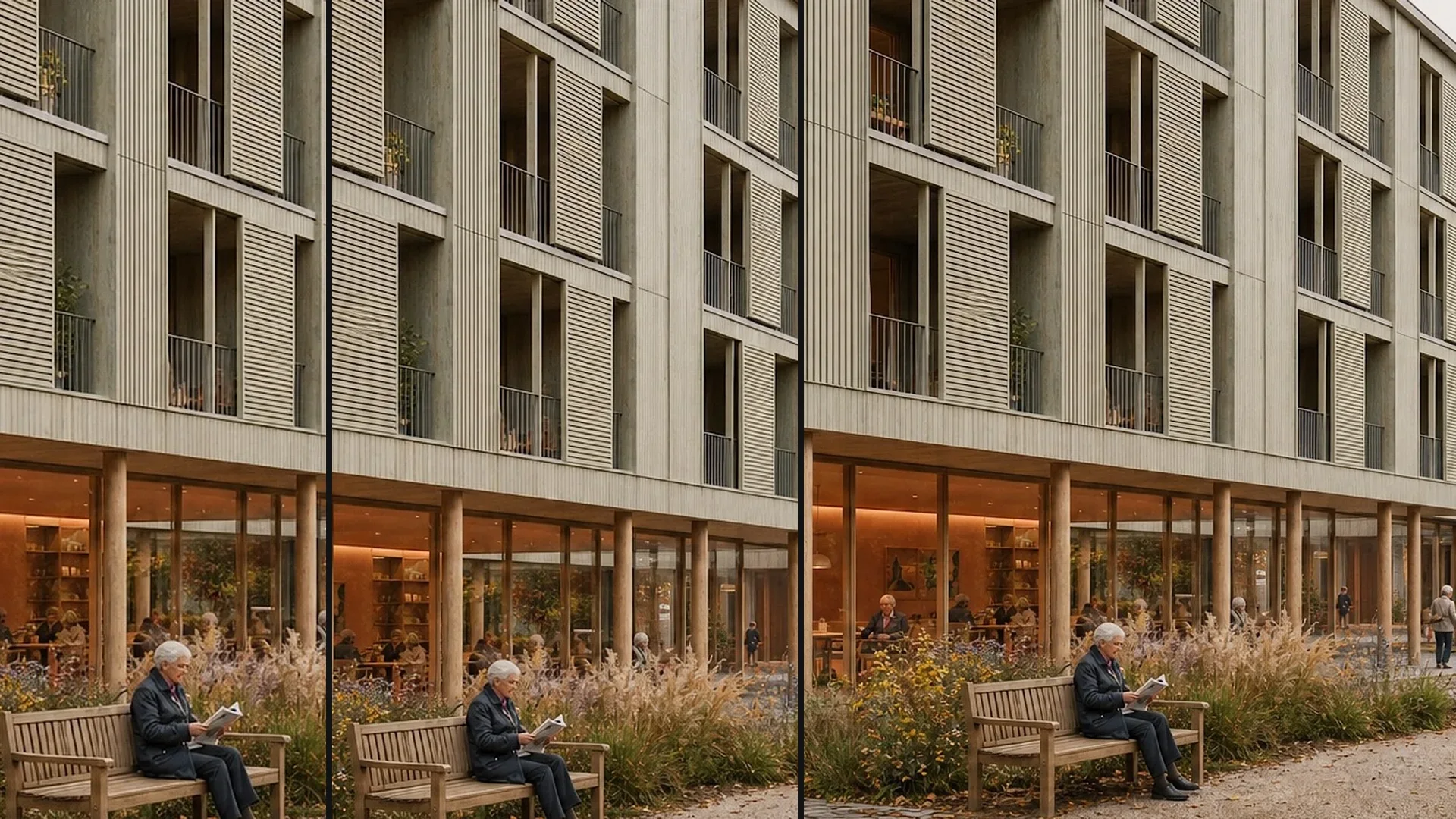
The building by the water in the original and with limestone and warm light – the envelope recalculated, water and reflection stay.
06
The facade detail in the original and with a broom finish in the lower area – the scraped plaster above stays as it is.
Furniture with an added room, bathrooms with different light, facades with different materials – one spot changed each time. Click an image to see the versions.
Mark, describe, compare – whatever lies outside the marking stays.
Brush, rectangle, circle or polygon: mark the car, the empty forecourt or the facade surface. To remove, the marking is enough; to add or change, add a description.
Have the object removed – the area is filled plausibly – or describe what should be added or different: people, trees, a different material. Up to six reference images set the direction.
Every edit is a new version next to the original. Place them side by side in Boards, check the transition at the edge of the marking and download the chosen one as PNG.
Mark an area, show material or style with a reference image, and collect the variants in Boards. Here's how it looks in the app.
01
Masking is the tool on this page: only the marked area is recalculated. Because the image is rescaled in the process, it may lose a little sharpness outside the mask – upscale at the end.
02
Show material or style with a reference image. The result interprets the sample.
03
Original, removed, added, changed – side by side, the clients see what has changed and what hasn't.
Where a rendering is almost right and a new render would cost too much.
Work the jury's recommendation into the competition image, bring the forecourt to life, change a facade panel – without recalculating the scene.
Swap a piece of furniture, change a wall color, remove decoration – in the finished room image.
Remove containers, cars and construction fences from the photo, add sky and planting – labeled where it affects the property.
Only the facade new, only one wall in the room – the rest of the customer's photo stays as it is.
Try the workflow with an image of your own first. Free is for non-commercial testing. For use in client projects, choose a paid plan.
Annual payment: 12-month term.
For Testing
Free of charge
200 Credits
up to 40 images, depending on model and resolution
Costs less than one external visualization
CHF 120/ mo
With monthly billing: CHF 150/ mo
Save CHF 360 per year
4'000 Credits
160–800 images or 10–13 videos, depending on model and resolution
excl. VAT · Annual payment: 12-month term
Native 4K and enough credits to never count
CHF 264/ mo
With monthly billing: CHF 330/ mo
Save CHF 792 per year
10'000 Credits
400–2'000 images or 25–33 videos, depending on model and resolution
excl. VAT · Annual payment: 12-month term
Depending on model and resolution. Subscription credits reset monthly and are used first; purchased credit packs do not expire.
A convincing image also has to hold up in everyday design work. In Vizera Labs, we test AI models and editing methods on architecture and interior images – with documented comparisons, measurable criteria and human evaluation.
Does everything that wasn't marked stay unchanged? We compare the original and the edit pixel by pixel outside the area and check the transition at the edge.
A removed car shouldn't leave a shadow behind or create a new window. We measure what happens inside and outside the marked area.
How close does the result come to your material sample? We compare reference image and visualization and assess how color, surface and material character carry over.
First the facade, then the light, then the furnishings: we examine how image structure, sharpness and colors change across several editing steps.
More pixels don't automatically mean better detail. We compare upscaled images in close-up and check for convincing structures, smoothing and unwanted textures.
Which model suits which task? We compare models on shared test tasks and evaluate image quality, processing time and cost as the basis for our product choices.
Internal Vizera tests. Results apply to the documented tasks, models and settings. You'll find the test scope and limitations with each study.
Editing solves most corrections to a finished image. Three limits remain.
When a large object is removed, Vizera fills the area plausibly – not with what was really behind it. For small distractions this is invisible; for half a facade, check the result carefully.
Putting an element somewhere else means removing it here and adding it there – two edits, two checks. The object comes back as a new, similar one, not as a copy.
When editing, the image is rescaled; outside the marked area it may lose some sharpness. Several edits in a row add up – upscale at the end.
How the individual tools work and what firms and businesses use them for.
Short videos on this topic: follow along step by step in your account.
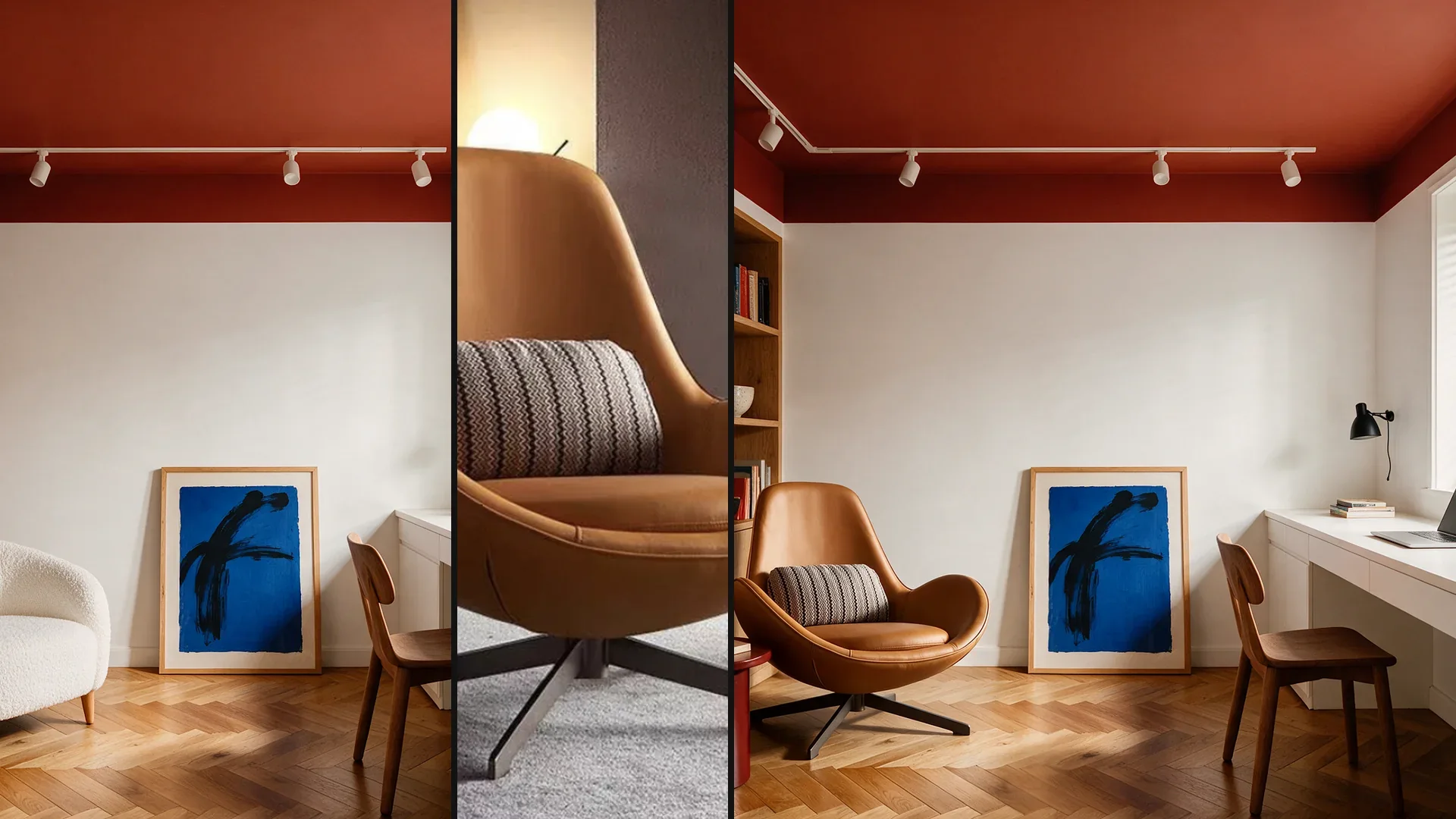
Answers on removing, adding, moving, people, sharpness and extending images.
Upload the image, mark the object, have it removed. The area is filled plausibly with the surroundings; the rest of the image stays. Check shadows and edges at the border of the marking – invisible for small objects, an interpretation for large ones.
200 free Credits, once at sign-up. No credit card, no installation.
