Place a new building in a photo
Turn a white massing block in a photo of the real surroundings into a finished house, while the surroundings and perspective stay the same.
- Level
- Fortgeschritten
- Starting point
- Foto
- Features
- Generieren, Prompt Agent
- Length
- 1:39
What you learn in this video.
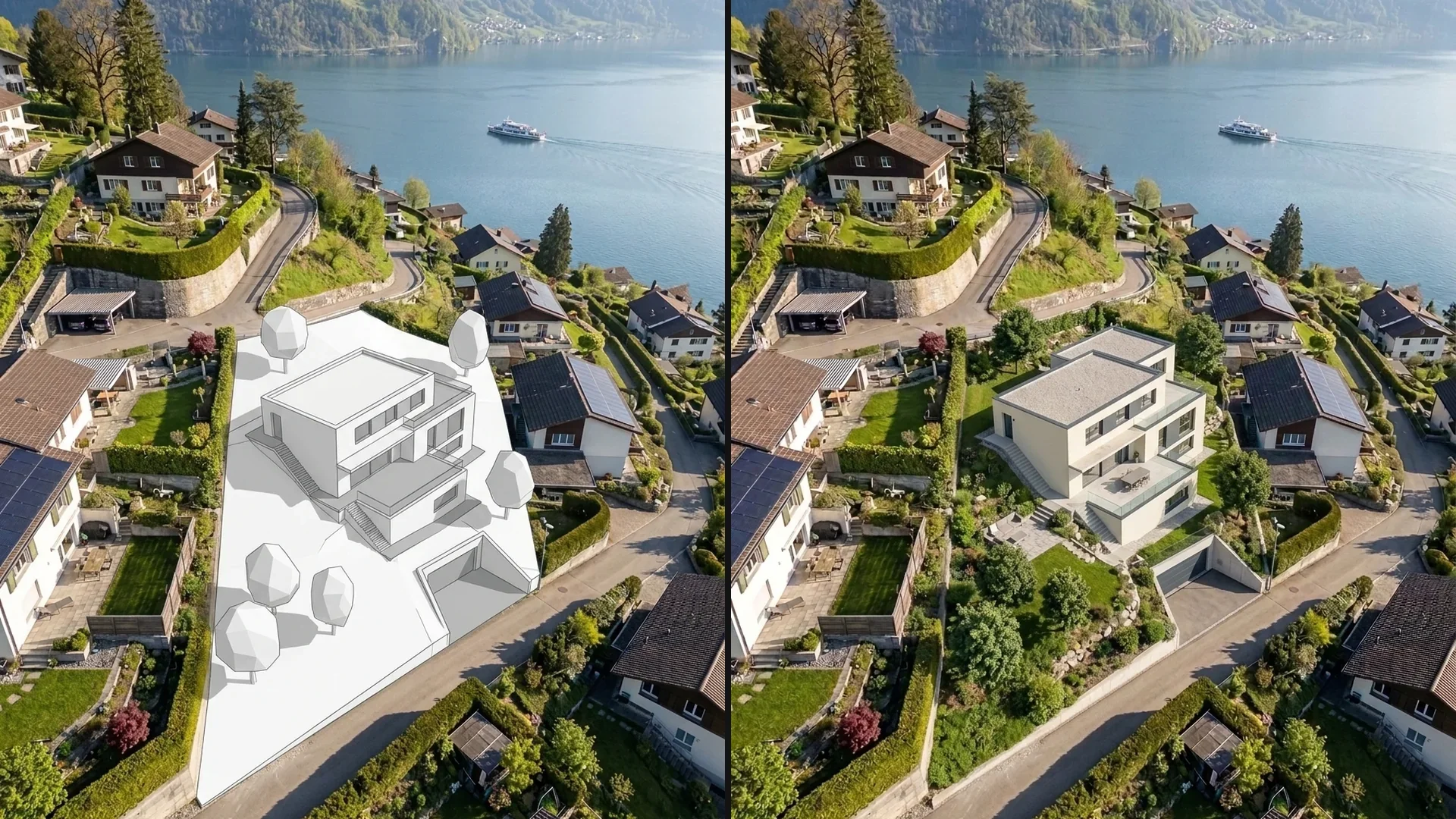
A white massing block in the photo of the plot shows the position and size of the planned house. The prompt states that only this area changes. The result shows a finished house; neighboring houses and perspective stay unchanged.
A new building in a photo in 7 steps.
This is how it goes in the video – in the same order in your account.
Input and result.
Input, reference and result in full resolution. Click an image to open it full size.
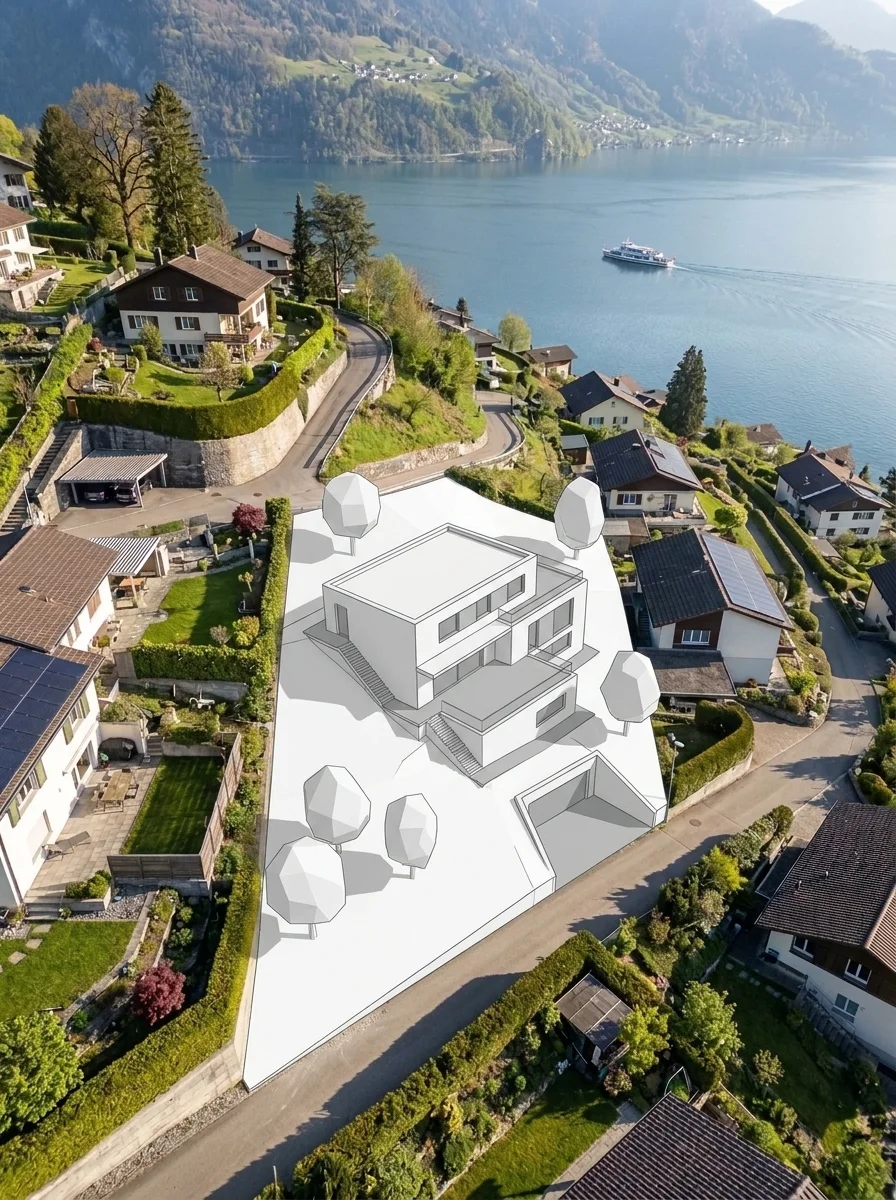
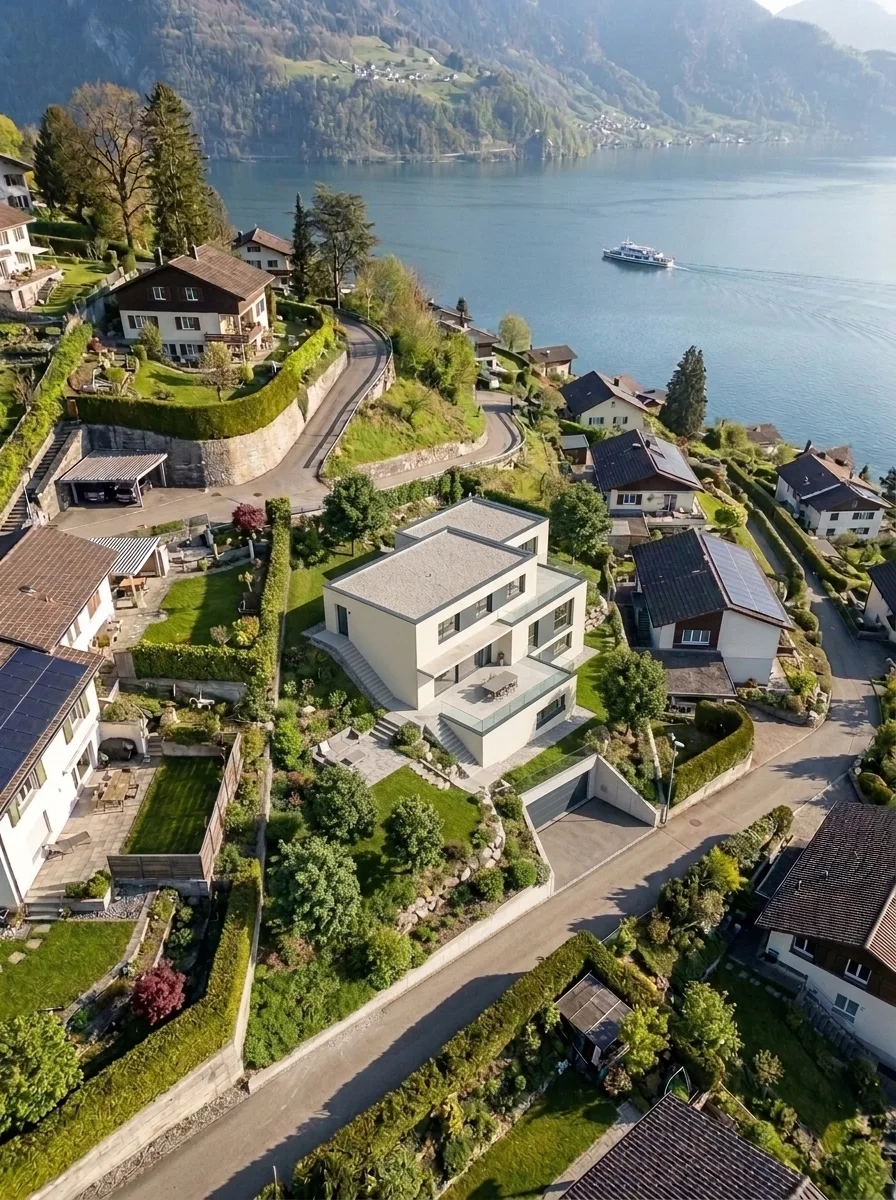
Prompt for a new building in a photo.
Entered exactly like this. Copy it and adjust the location, house and material.
Only the plot in the center of the image: finished house with facade, windows, terrace and garden. Everything else stays as it is.
The Prompt Agent is set to Automatic. When you click Generate, it works this short text into a detailed prompt in the background.
Tips for better results.
Your text does not have to be perfect: when the Prompt Agent is set to Automatic, it works out your short description when you generate.
If you want to develop the prompt yourself, open the Prompt Agent with one click. There is a separate video on this.
For now, you place the massing block in the photo with an image editing program. A feature that does this automatically is coming in the next few weeks (as of October 2026).
TranscriptTranslated from the German voiceover. click a timestamp to start the video there
Questions about a new building in a photo.
You place a white massing block in the photo where the planned house will be and state in the prompt that only this area changes. After generating, the image shows a finished house in that spot.
Related videos and features.
The feature in detail and the next videos.
Remove objects from a photo
Remove objects from a photo: once with a short description, once without text using Edit and Remove.
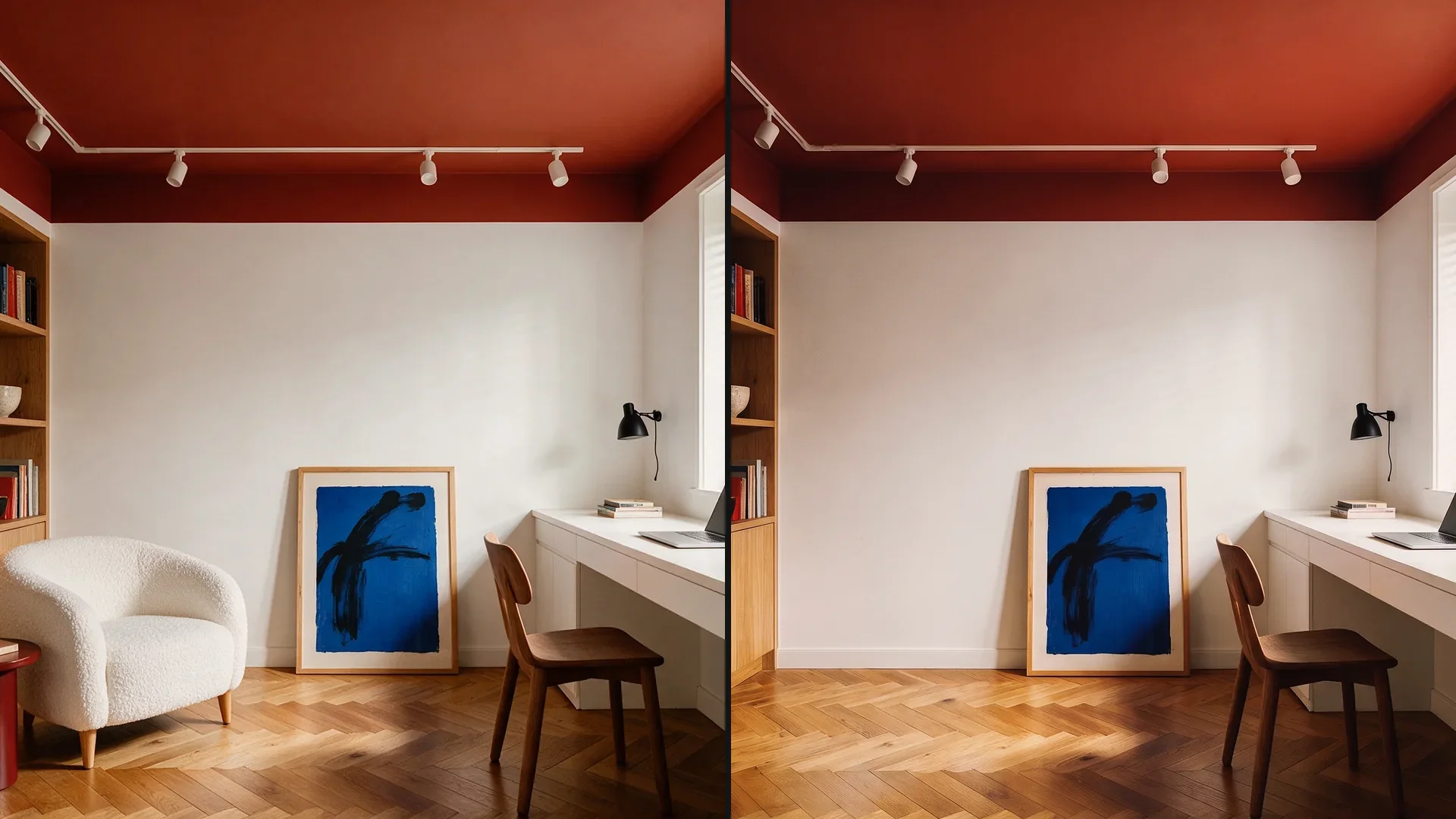
Extend an image: adjustments with AI
Add to the edges of a tightly cropped image in the Extend area to show more of the surroundings.
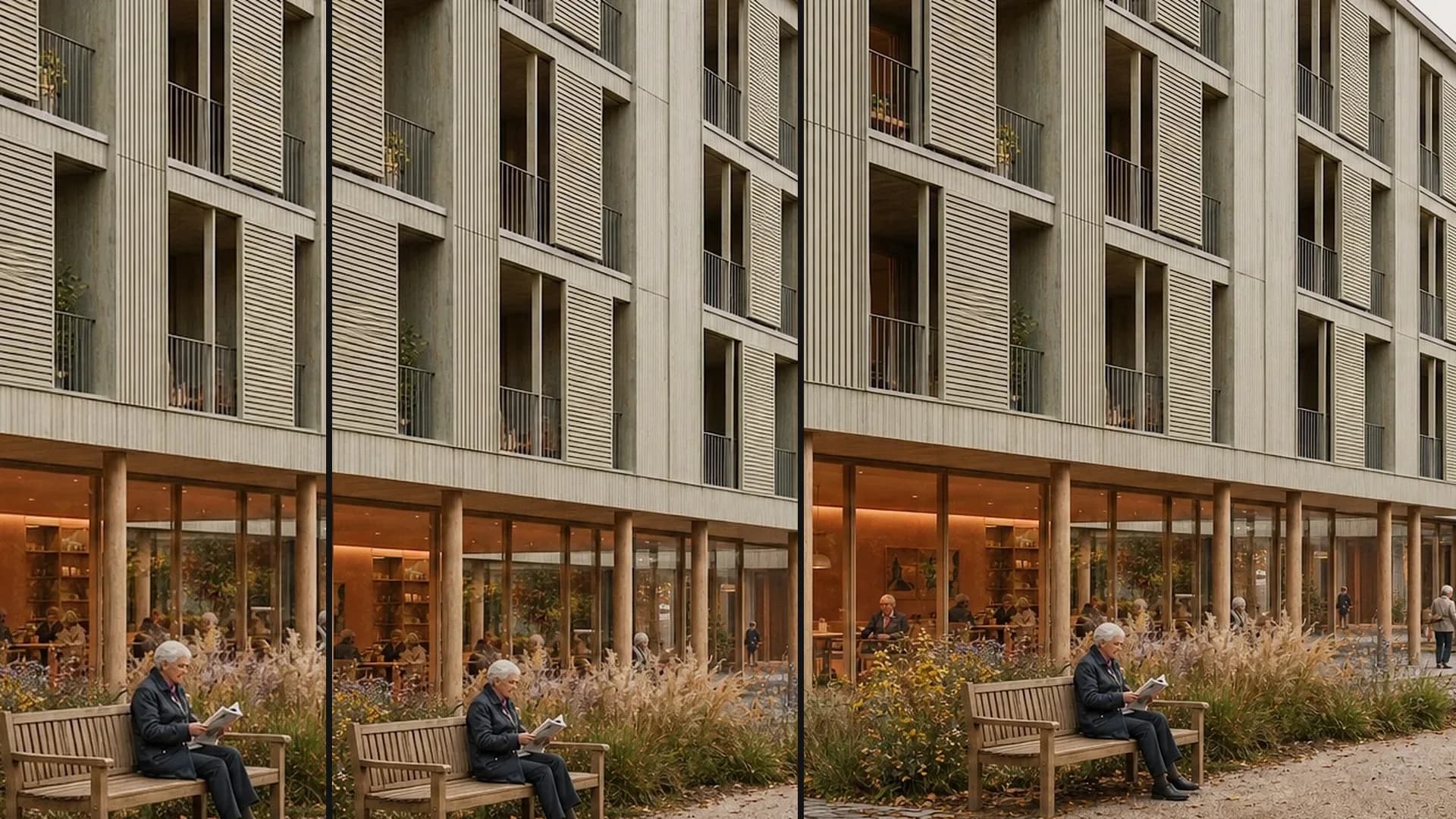
Upscale an image: adjustments with AI
Two ways to get an image at a higher resolution: Generate with the 4K resolution, and the Upscale area.